
How to search and add new IPCs in Jovision CloudSEE1.0 NVR?
Steps:
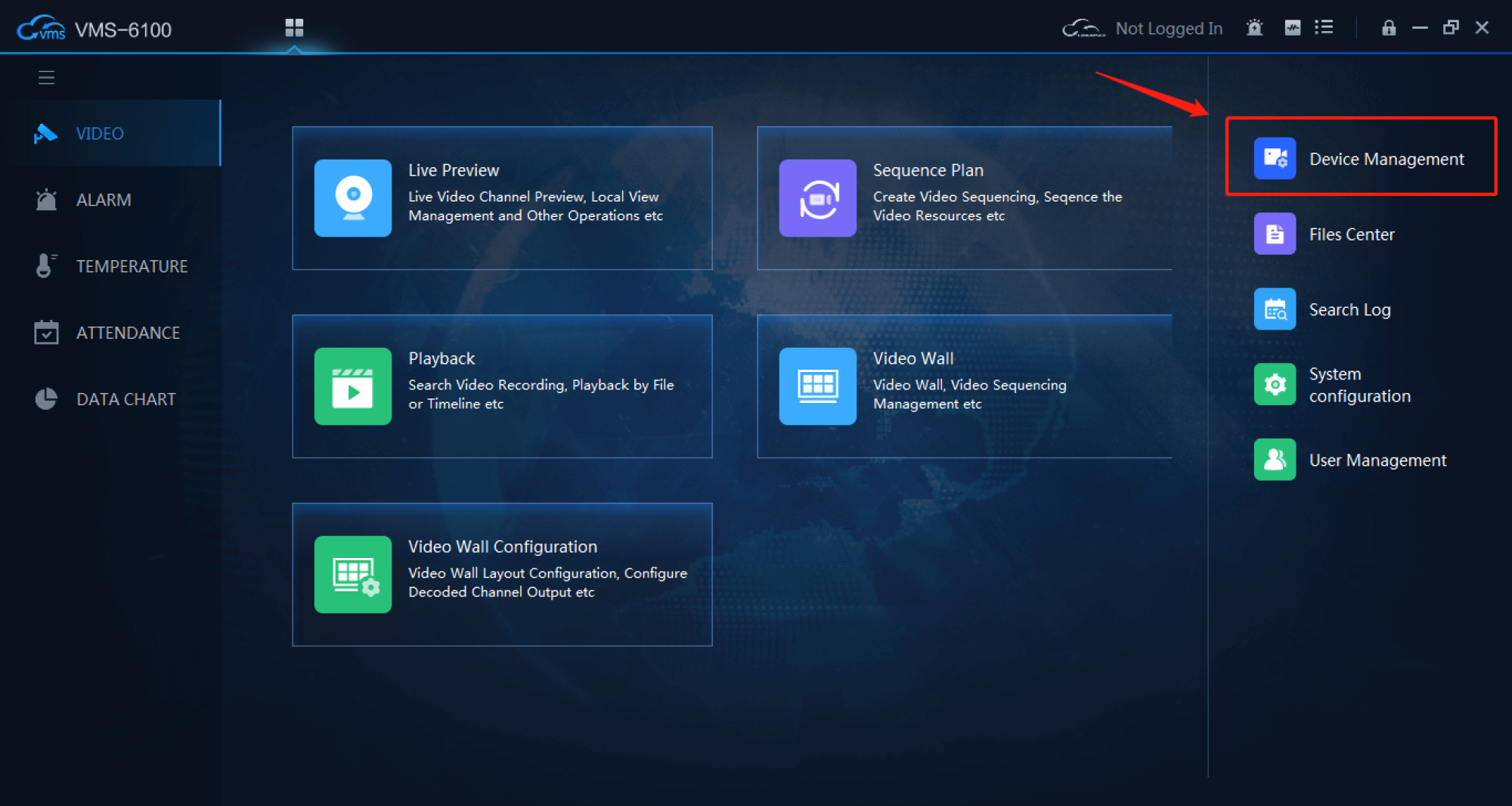
1. Open "VMS-6100" and go to "Device Management".
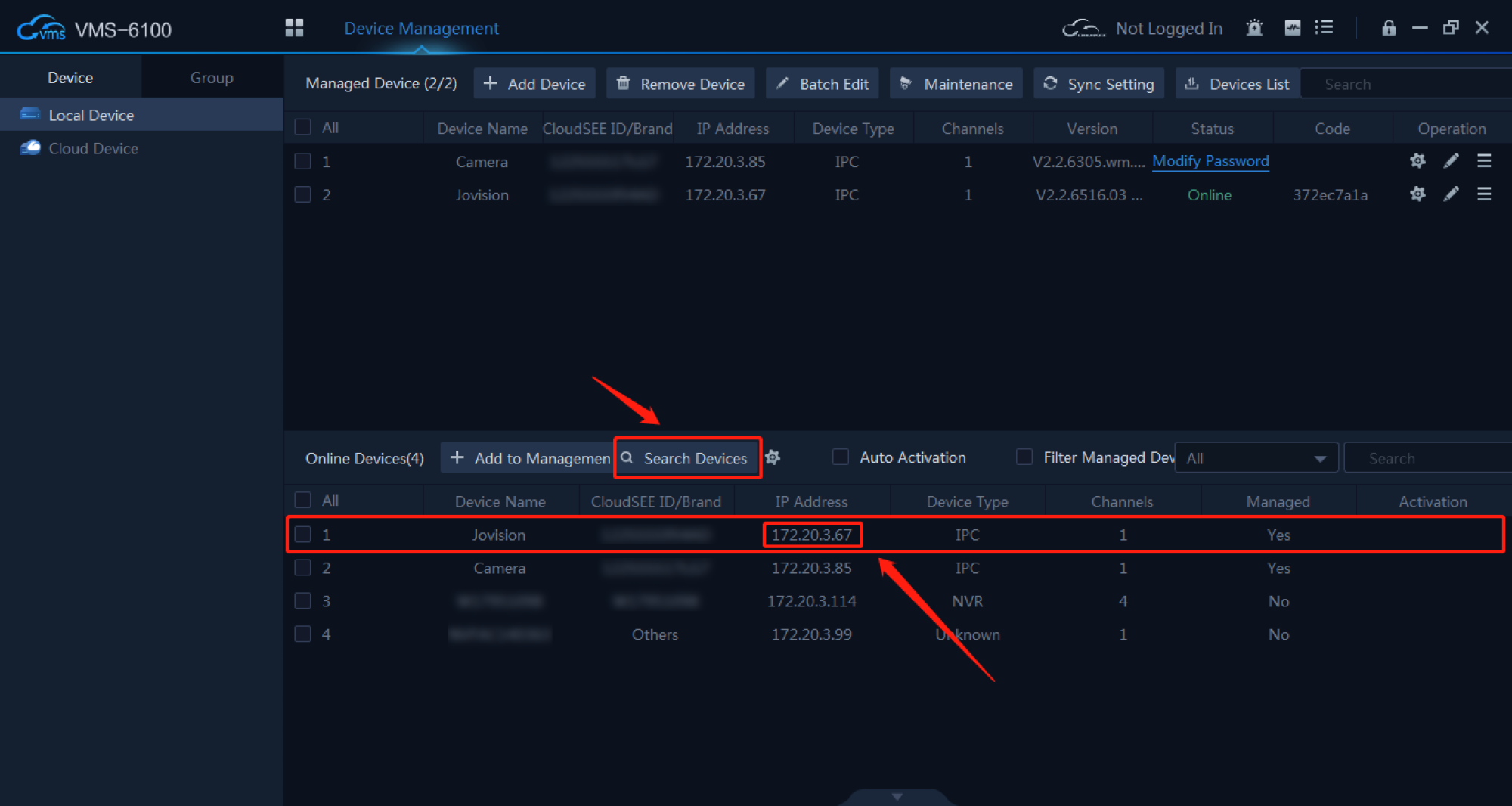
2. Click "Search Devices" in "Device Management", search for the newly installed camera, and check the camera’s IP address
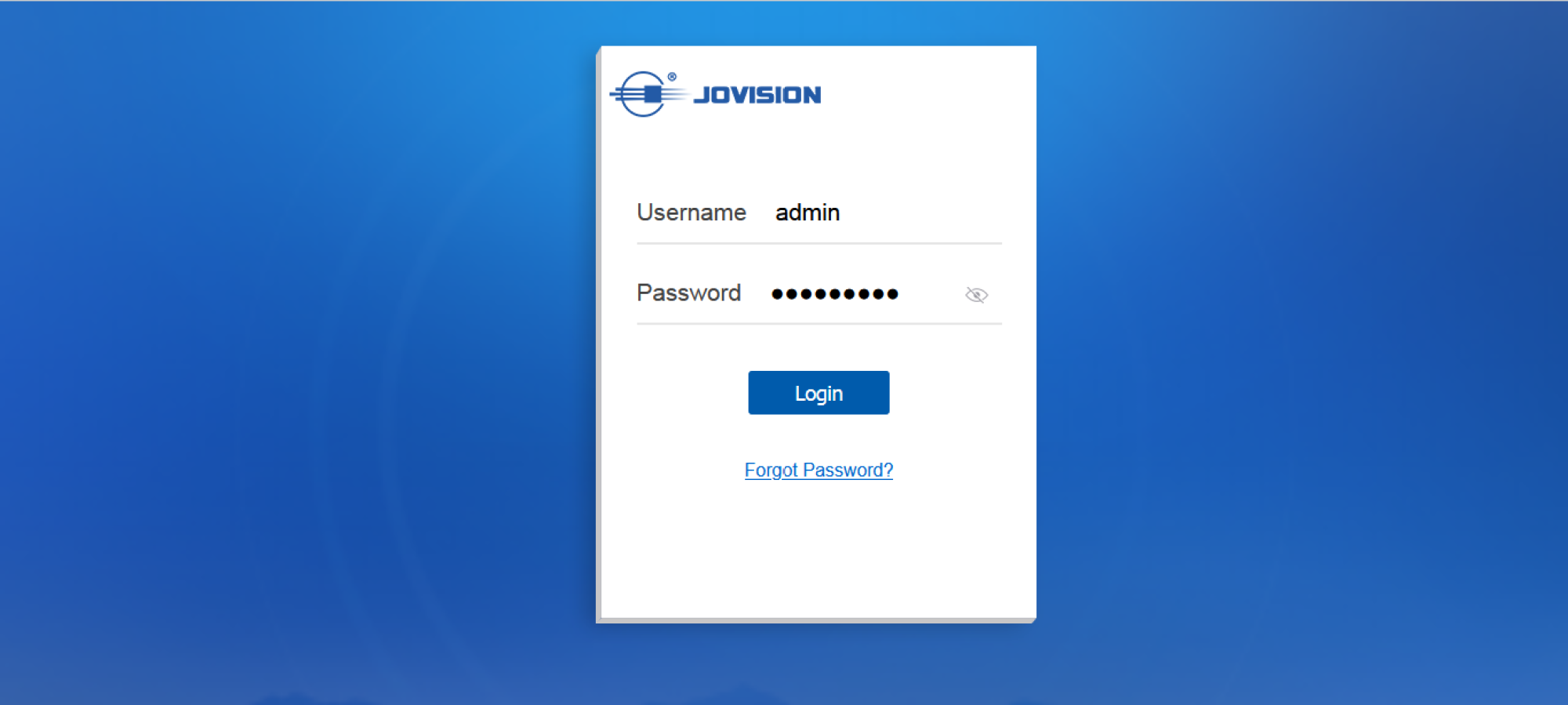
3. Open the browser, enter the camera’s IP address, follow the steps to activate the camera(If needed), and enter the background
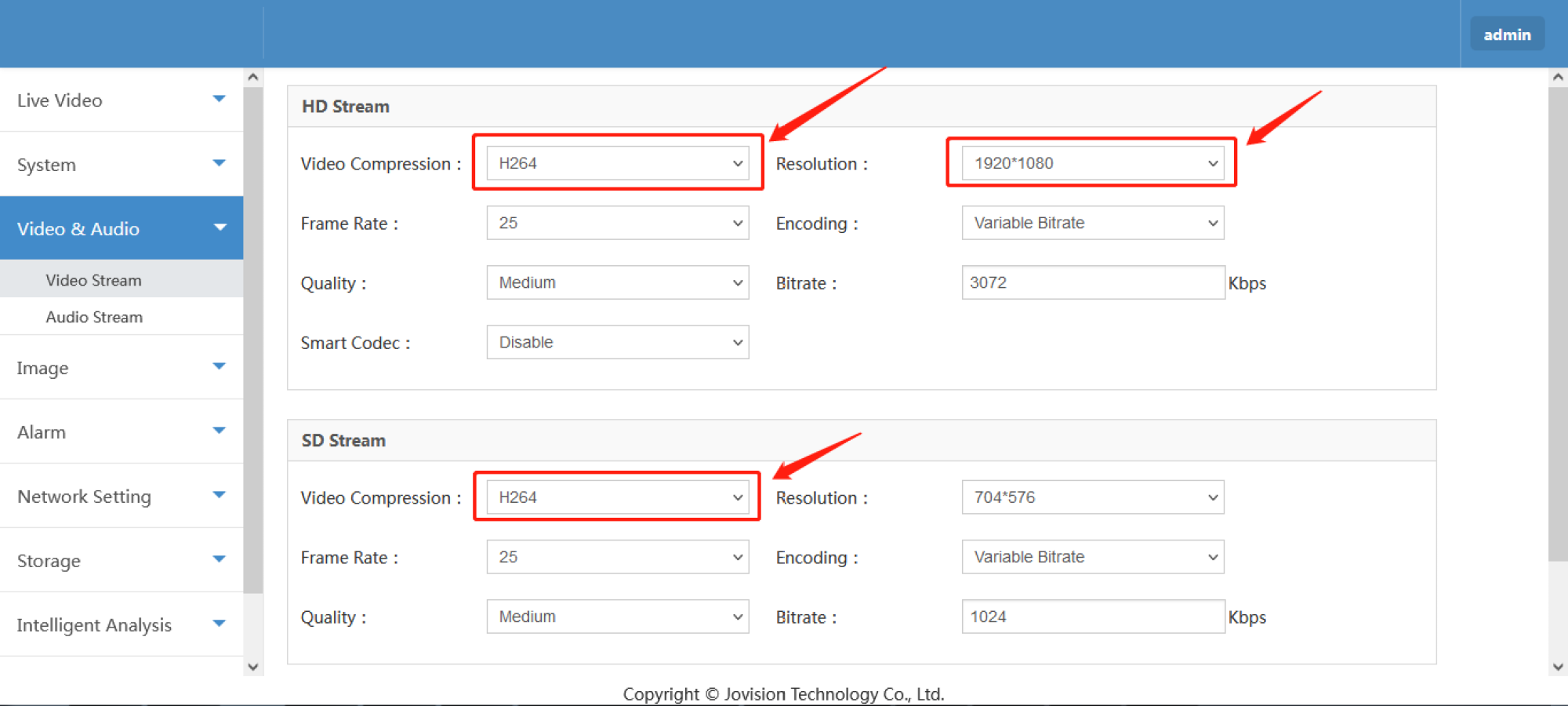
4. Go to the background to find "Video & Audio -> Video Stream", change "Video Compression" to "H.264", "Resolution" to "1920x1080", save the setting.
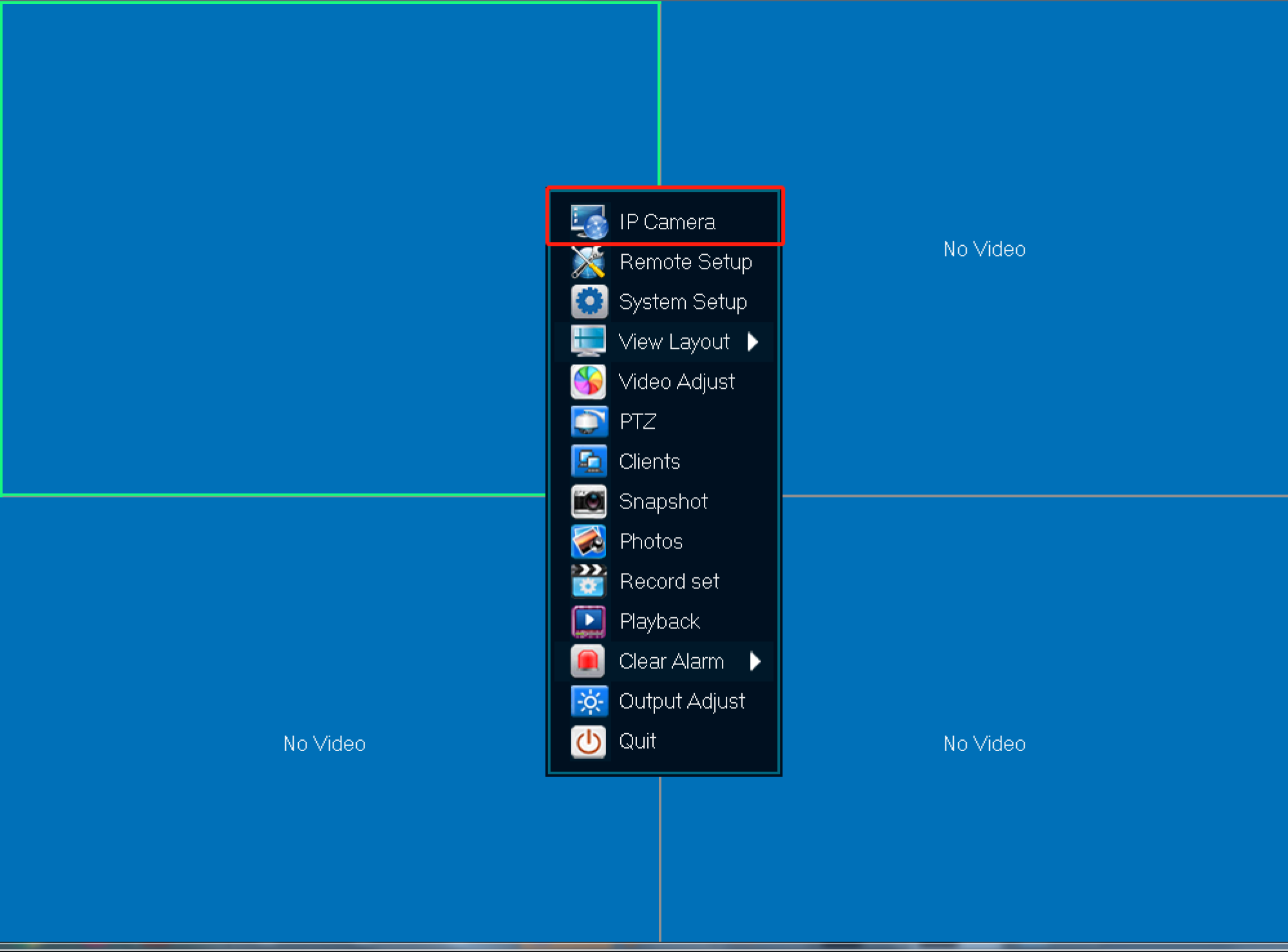
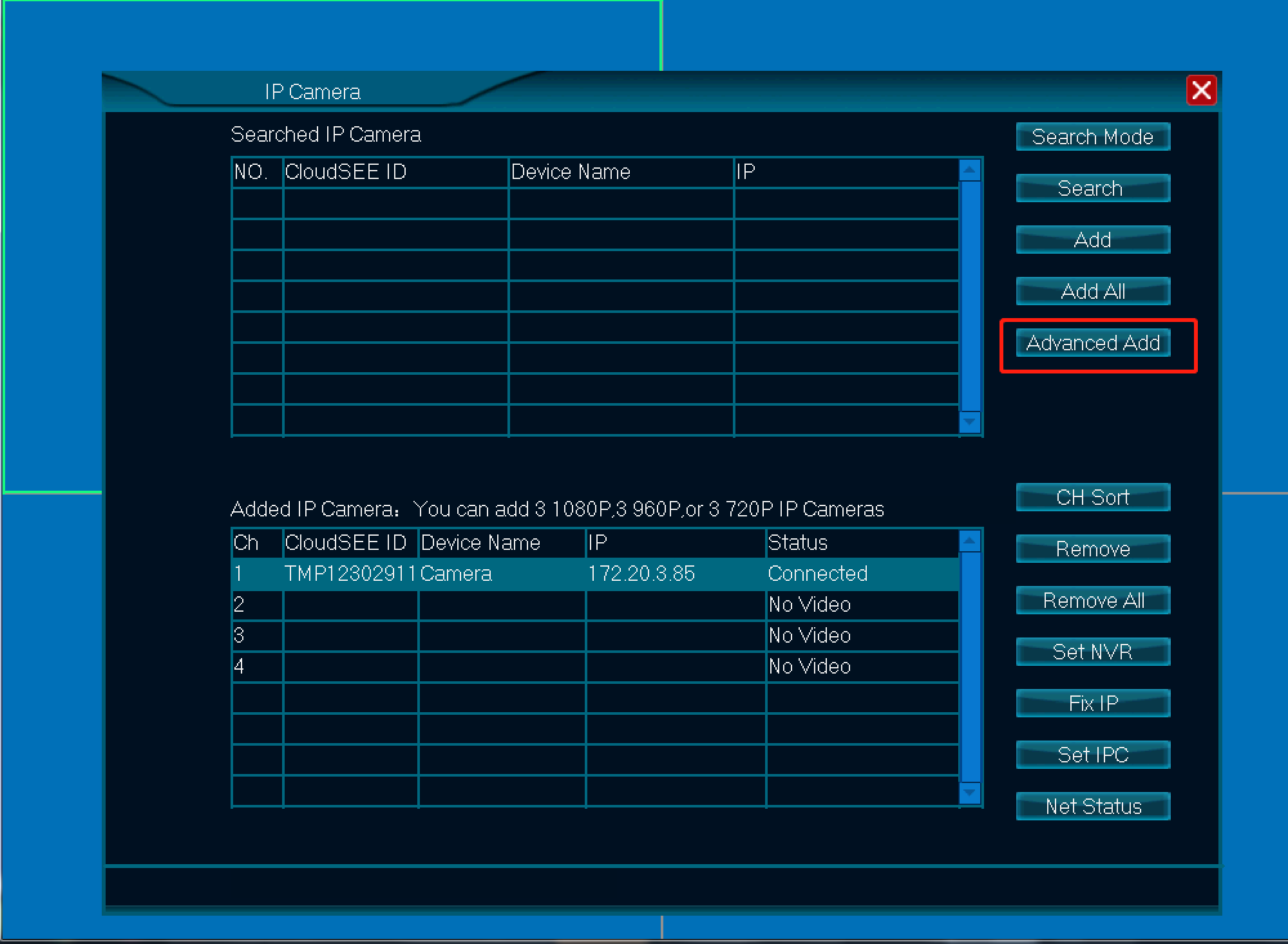
5. Right click NVR -> IP Camera -> Advanced Add
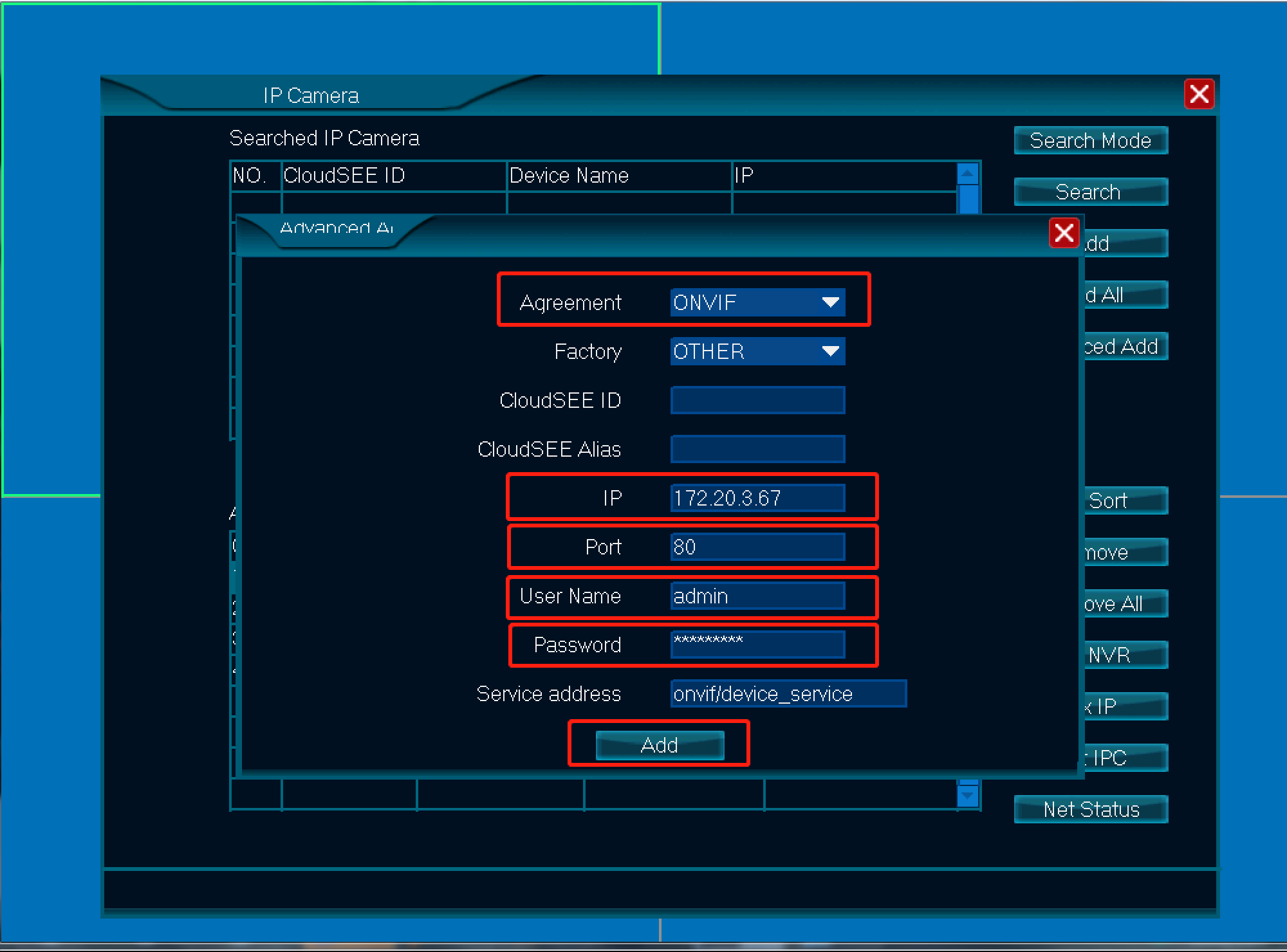
6. Set Agreement to "ONVIF", Input"camera’s IP address" on item IP, Input "80" or "6688" on item Port , Input camera’s username and password, then click button “Add”. Now setup complete.
Next:no
Online Message
Online Message